AWS Terraform Workshop: From Fundamentals to Production Architecture
This document provides a complete, high-fidelity manual for the AWS Terraform Workshop. It covers technical depth, service definitions, architectural "whys," and complete step-by-step implementation blocks for every topic.
1. Introduction
Workshop Introduction
This is a guided, hands-on workshop where you build a realistic AWS environment using Terraform and learn the core practices used in production Infrastructure as Code (IaC): repeatable environments, safe change workflows, state management, modularity, and least-privilege access.
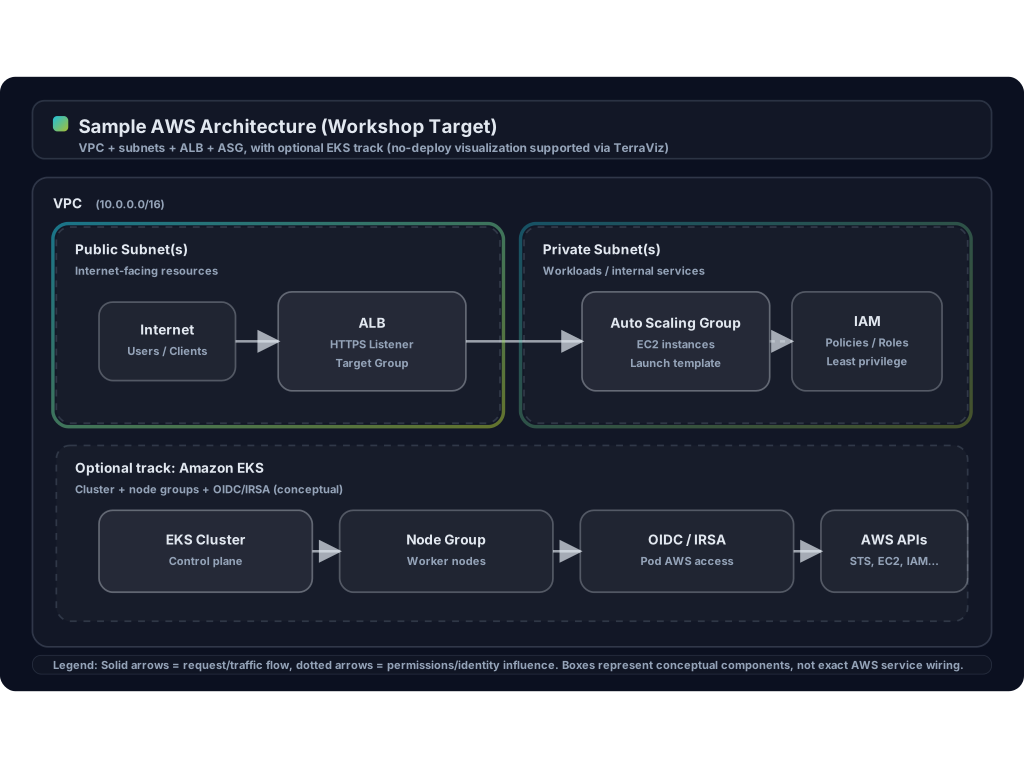
What you will build (sample AWS architecture)
Over the course of the modules, you will incrementally build an AWS environment that resembles a production-ready baseline. Conceptually, the target architecture includes:
- Networking foundation
- A dedicated VPC with public and private subnets across Availability Zones
- Internet access via an Internet Gateway, and private outbound access via NAT (where applicable)
- Route tables and security boundaries to separate internet-facing and internal workloads
- Compute and traffic entry
- An internet-facing Application Load Balancer (ALB)
- A scalable compute layer using an Auto Scaling Group (ASG) for EC2-based workloads
- Identity and access
- Practical IAM usage (users vs groups vs roles vs policies), and how Terraform interacts with AWS APIs securely
- Kubernetes (optional/advanced track)
- An Amazon EKS cluster, including foundational concepts like cluster identity, kubeconfig access, and (optionally) OIDC/IRSA for pod-to-AWS permissions
The workshop is designed so each module builds on the previous one. Even if you don’t implement every “advanced” item, you’ll still end with a coherent environment and a solid Terraform workflow.
How to use this workshop (self-paced)
You can complete this workshop end-to-end on your own. It supports two modes:
Live mode (deploy to AWS)
- Use this mode when the goal is to practice real infrastructure deployment and validation in AWS.
- Suggested flow per module:
terraform fmtterraform validateterraform planterraform apply- Verify using AWS Console / CLI
Non-live mode (no AWS deploy; visualize with TerraViz)
- Use this mode when the goal is to learn Terraform structure, references, modules, and architecture without creating cloud resources. It is not necessary to install Terraform!
- Suggested flow per module:
- Write the
.tffiles for that module (treat the module as a “checkpoint”). - Upload your Terraform code to TerraViz to visualize the dependency graph and validate your references.
- Iterate on your
.tfuntil the graph matches the intended architecture, then proceed to the next module.
- Write the
Recommended approach (both modes):
- Read the “why” first, then type the “how”
- Skim each module’s explanation to understand the intent.
- Then implement the Terraform code in order.
- Move forward only when your current state is healthy
- If a step fails (or the graph doesn’t look right), stop and resolve it before continuing.
- Keep notes and commit often
- Treat this like software development: small changes, frequent commits, clear messages.
- Cost and cleanup (Live mode only)
- Some resources (especially EKS/ALB/NAT) can incur cost.
- When finished, use the cleanup module and verify resources are removed.
Suggested learning outcomes
By the end, you should be able to:
- Explain how Terraform builds and uses a dependency graph
- Use variables, outputs, and basic module patterns
- Understand state, remote state, and why locking matters
- Apply practical IAM patterns for Terraform operators and workload permissions
- Confidently reason about common AWS building blocks (VPC, subnets, SGs, ALB, ASG)
Infrastructure as Code (IaC): What it is and why it matters
IaC (100-level)
Infrastructure as Code means you define infrastructure (networks, servers, databases, permissions, etc.) as version-controlled code instead of manually clicking in a console.
At a high level:
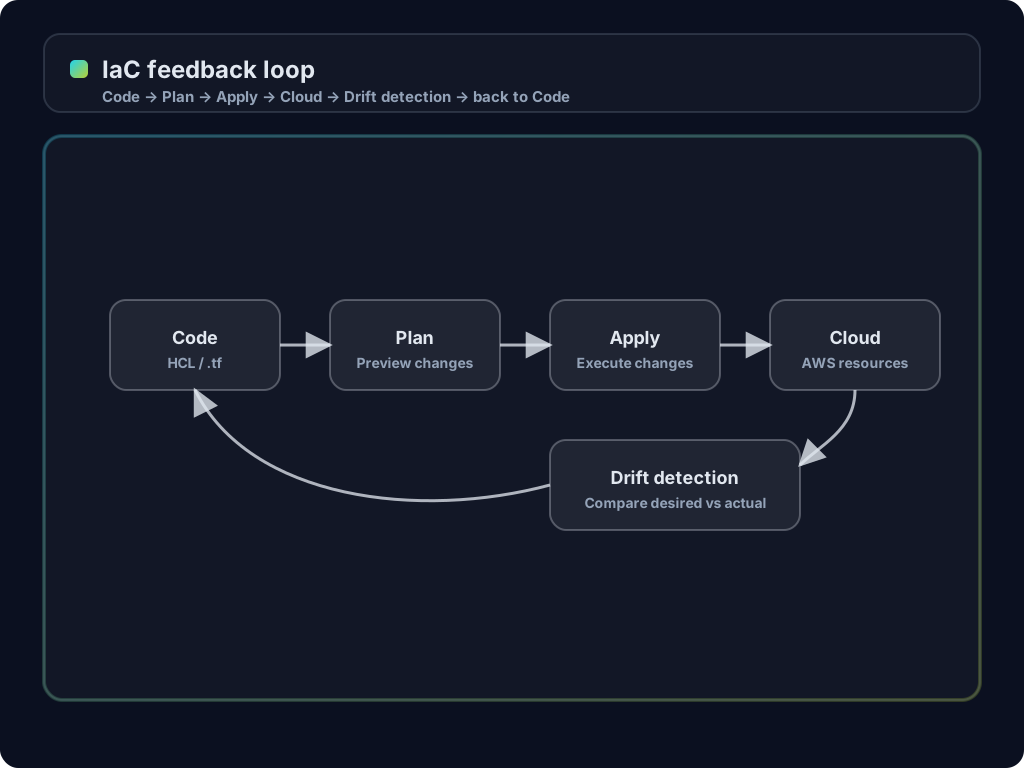
- You write the desired infrastructure in code.
- You run a tool (Terraform) to compare:
- Desired state (your code)
- Actual state (what exists in AWS)
- Terraform creates a plan (what will change), then applies it.
Why IaC is important (practical outcomes)
- Repeatability: rebuild the same environment (dev/stage/prod) reliably.
- Safety: changes are reviewed like software (pull requests, approvals, change history).
- Speed: provisioning becomes automated and consistent.
- Auditability: “who changed what” is visible in Git history.
ClickOps vs IaC (simple example)
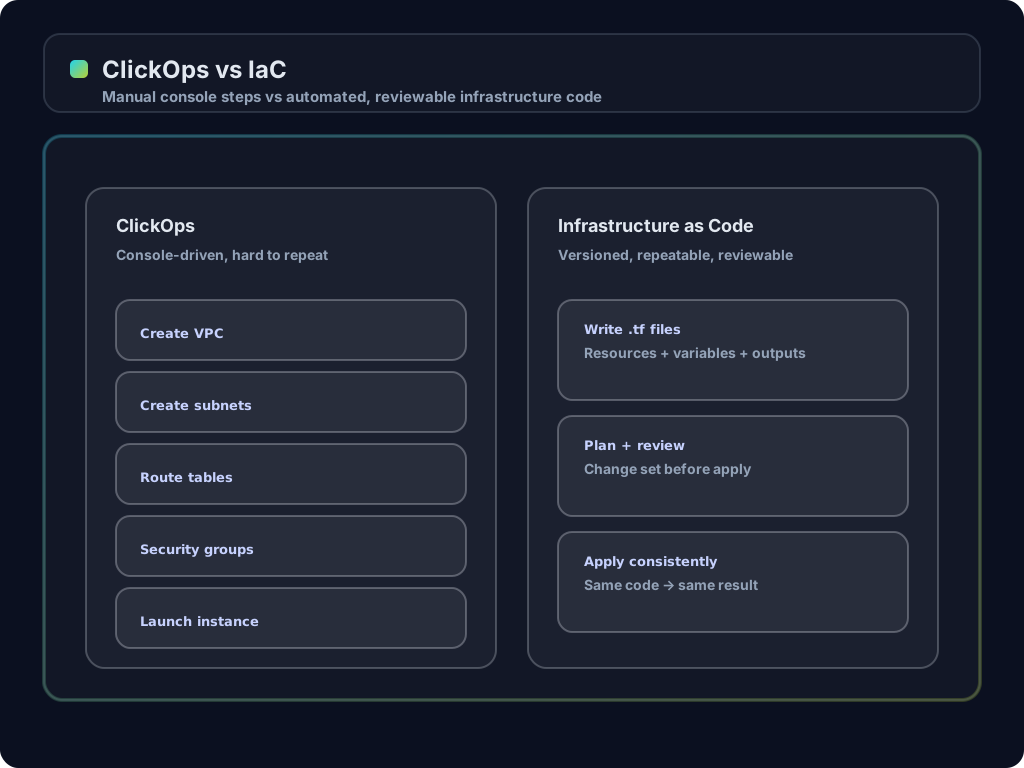
Console-driven approach:
- Create VPC
- Create subnets
- Create route tables
- Create security groups
- Launch instance
IaC-driven approach:
- Describe those pieces in
.tffiles - Terraform determines order and dependencies automatically
Example snippet (HCL):
resource "aws_vpc" "main" {
  cidr_block = "10.0.0.0/16"
}

resource "aws_subnet" "public" {
  vpc_id     = aws_vpc.main.id
  cidr_block = "10.0.1.0/24"
}
IaC (200–300 level): core concepts you will use constantly
- Declarative configuration: you describe what you want, not the step-by-step procedure.
- Idempotency: applying the same code repeatedly converges to the same result.
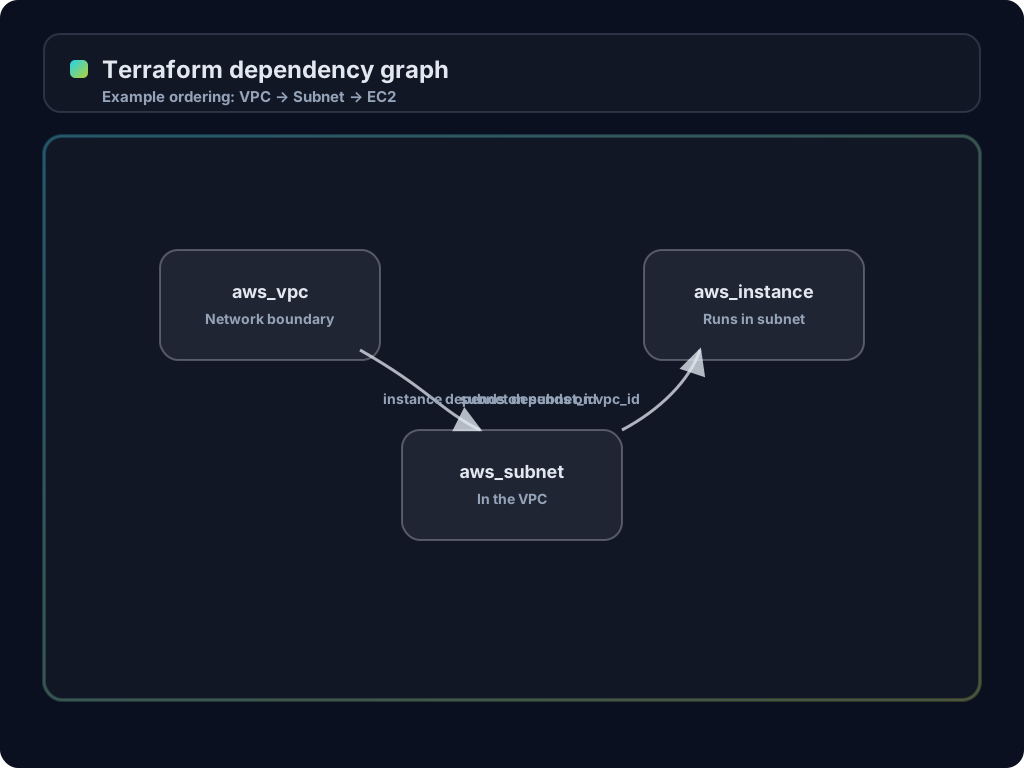
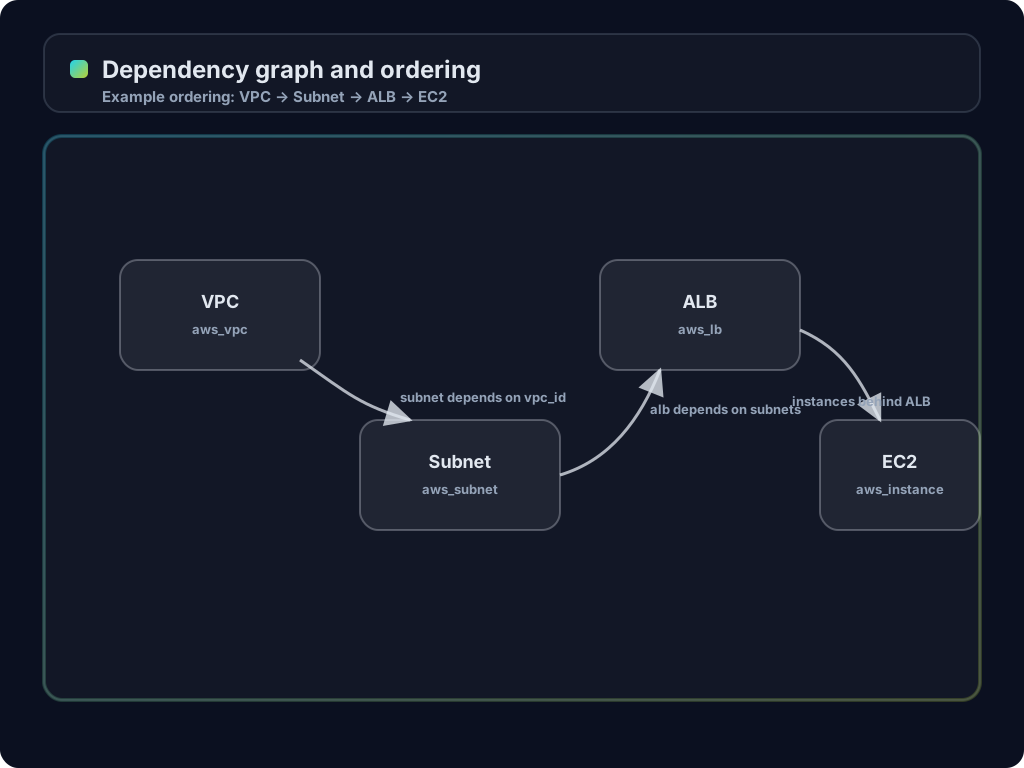
- Dependency graph: Terraform builds a graph from references (e.g.,
aws_subnet.publicdepends onaws_vpc.main). - State: Terraform records what it created in a state file (
terraform.tfstate). This is how it knows what exists and what must change. - Drift: if someone changes resources manually, Terraform can detect it at plan time.
IaC (advanced intro): production-minded framing
As systems grow, IaC becomes part of software delivery:
- Environments: separate state and configuration for dev/stage/prod.
- Modules: reusable building blocks (like libraries) for VPCs, ECS clusters, RDS, etc.
- Remote state: store state centrally (e.g., S3 + DynamoDB locking) to enable teamwork safely.
- Policy and guardrails: enforce standards (naming, tagging, allowed regions/instance types) via policy-as-code and CI checks.
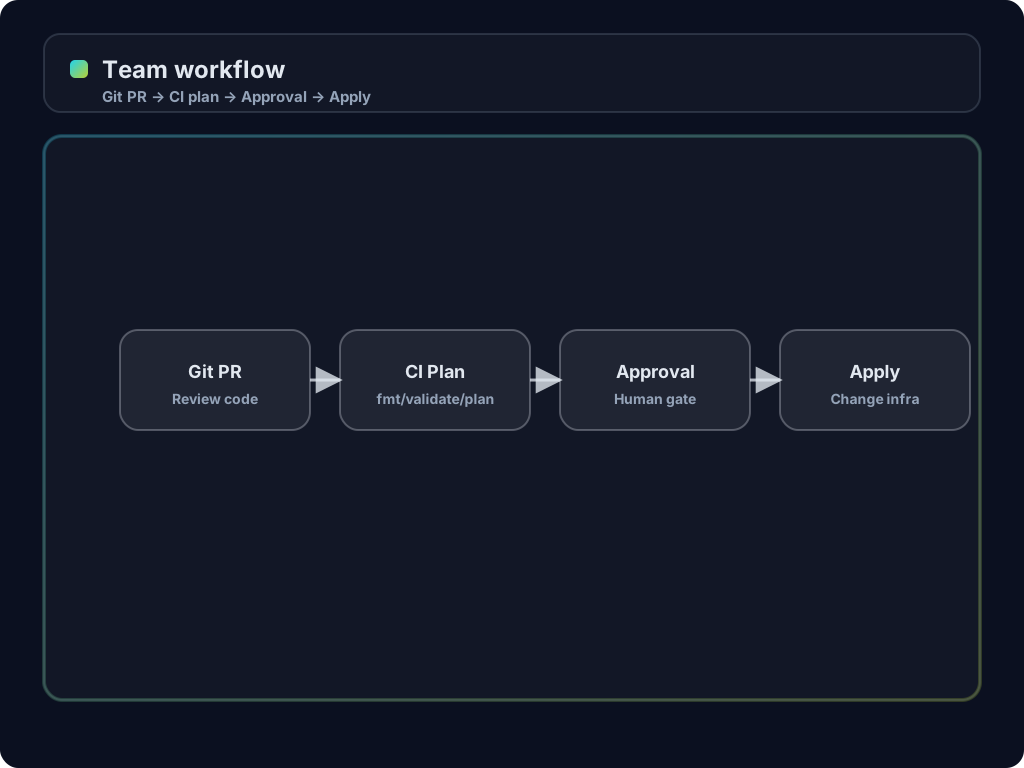
- CI/CD: run
terraform fmt,terraform validate, andterraform planin pipelines; require approvals before apply.
Preparation and Comparison
Before writing code, we must understand the "Stateful" vs. "Managed Service" debate.
AWS CloudFormation is an AWS-native service. You upload a template (JSON/YAML), and AWS handles the execution and state internally. It is highly integrated but locked to the AWS ecosystem.
Terraform is an open-source tool by HashiCorp. It is Cloud-Agnostic, allowing you to manage AWS, Azure, GCP, and even SaaS tools like GitHub in the same script. Terraform uses a State File (.tfstate)—a JSON map of your infrastructure—to remember what it built. This allows for a plan phase, which acts as a "dry run" to show exactly what will happen before you commit.
Setting Up Your Environment
On Windows (PowerShell)
Terraform Installation:
- Download the ZIP from https://developer.hashicorp.com/terraform/install.
- Create a folder named
terraformin yourC:\drive (C:\terraform). - Extract
terraform.exefrom the ZIP intoC:\terraform. - Press Win + R, type sysdm.cpl, and press Enter to open System Properties
- Go to the "Advanced" tab and click "Environment Variables."
- Under "System variables," find and select the "Path" variable, then click "Edit."
- Click "New" and add
C:\terraformto the list, then click “OK” on all open windows to apply and save the changes.
AWS CLI: Download and run the MSI Installer.
Git: Install from https://git-scm.com/install/windows.
Verify: Open Command Prompt (CMD) and run each
- terraform -version
- aws --version
- git --version
On macOS (Terminal)
- Install: Use Homebrew: brew install hashicorp/tap/terraform awscli git.
- Verify: run each
- terraform -version
- aws --version
- git --version
Introduction to Terraform and Infrastructure as Code (IaC) as a part of DevOps
Why is IaC important in DevOps?
Traditional "ClickOps" (manual console clicks) leads to Configuration Drift, where servers become unique "Snowflakes" that are impossible to replicate. IaC treats hardware like software. This is particularly important for automation flows of a CI/CD pipepline.
IaC in the DevOps & CI/CD Lifecycle (200-level)
IaC is the "glue" of DevOps, allowing infrastructure to move at the speed of software.
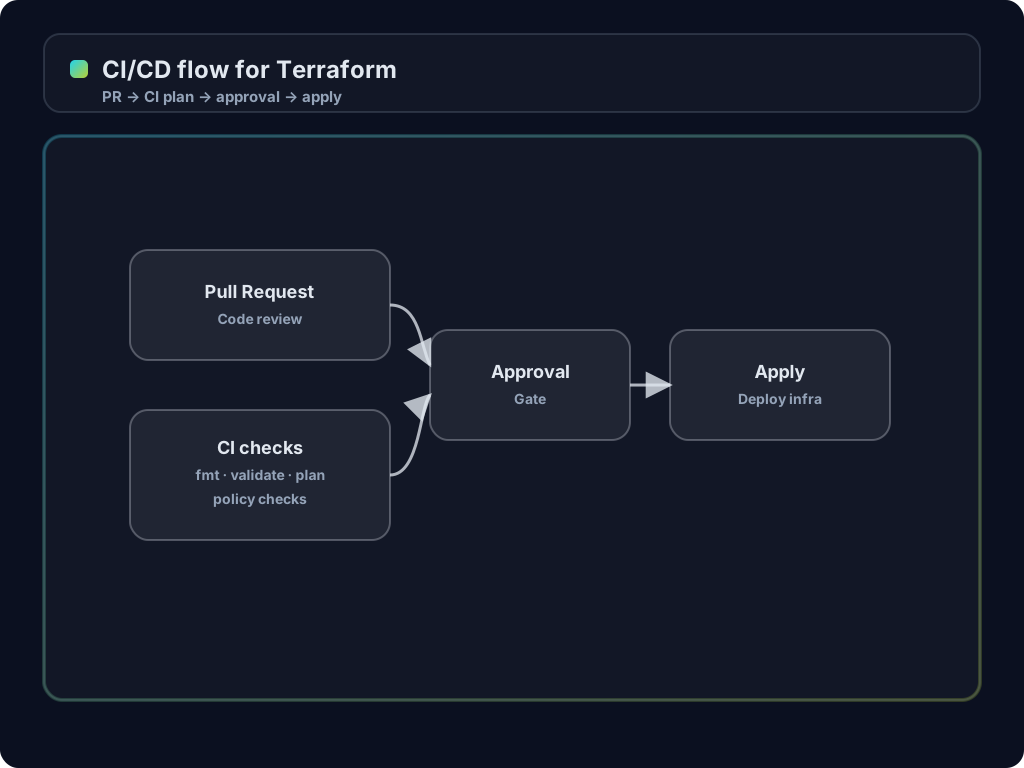
- The CI/CD link: pipelines can run
terraform fmt,terraform validate, andterraform planto verify changes. - Promotion: the same code pattern can be promoted from dev -> staging -> prod with different inputs/state.
Immutable infrastructure (200-level)
Instead of manually patching a long-lived server, many teams treat servers as disposable:
- Update configuration in code.
- Provision a new instance (or an autoscaling group rollout).
- Decommission the old instance.
This reduces "snowflakes" and makes changes predictable.
Core mechanics: how Terraform thinks (300-level)
To master Terraform, keep three pillars in mind:
- Declarative syntax: you describe what you want ("a VPC, subnets, an ALB"), Terraform figures out ordering.
- Dependency graph: Terraform builds a graph based on references (e.g., Subnet depends on VPC).
- State management: Terraform uses
terraform.tfstateas memory to map your code to real AWS resource IDs.
Key Concepts
- Declarative: You define the end state ("I want 3 servers"), and Terraform handles the logic.
- Idempotency: Running the code twice results in the same state. If the server exists, Terraform does nothing.
- Reconciliation Loop: Terraform compares your code (Desired State) to AWS (Actual State) and only fixes the difference (The Delta).
1.1 Introduction to Git and Repositories
A Repository is a version-controlled folder. We use Git to track every change. If a Terraform script accidentally deletes a database, Git allows you to "Roll Back" to the last working version of your code.
Step-by-Step: Initializing Git & Terraform
- Create Folder: Open a new Command Prompt (CMD) and run:
mkdir tf-workshop && cd tf-workshop - Git Setup: Run:
git initin the Command Prompt (CMD) to initialize the repository. - The .gitignore: Run the following commands in the Command Prompt to create a .gitignore file with the necessary entries:
echo .terraform/ > .gitignore echo *.tfstate* >> .gitignore echo .terraform.lock.hcl >> .gitignore - First Snapshot: Run:
git add .first, then if this is your first time using Git, you may need to set your user name and email before committing. If not already set, run:
Then, rungit config --global user.name "Your Name" git config --global user.email "[email protected]"git commit -m "Initial infra setup".
2. Terraform Syntax & Structure
Setting Up Terraform with the AWS Provider
Terraform is a "plug-and-play" engine. It needs the AWS Provider—a plugin that translates HCL code into AWS API calls.
AWS Credentials
You need an Access Key ID and Secret Access Key.
Security Rule: Never hardcode keys in .tf files. Use aws configure to store them in your local machine's encrypted credential store.
Step-by-Step: Authenticating
- Configure: Run aws configure. Enter your keys and region (ap-southeast-1).
- Define Provider: In main.tf:
Terraform
provider "aws" {
  region = "us-east-1"
}
- Init: Run terraform init. This downloads the provider binary to a hidden .terraform folder.
3. Terraform Variables
Resources are the components you build (Servers, VPCs). Variables are inputs that make your code reusable.
What are variables? (100-level)
A variable is a symbolic name for a value that can change. Instead of writing the same value everywhere (like t2.micro), you store it in one place and reference it.
At the 100-level, think of a variable as a labeled input box:
- You give the box a name (like
instance_type). - You tell Terraform what kind of value it holds (like
string). - You optionally provide a default.
- Anywhere you need that value, you reference the box (like
var.instance_type).
This is beneficial in code because it improves:
- Readability:
instance_type = var.instance_typecommunicates intent (“this is configurable”) better than a random hardcoded string. - Maintainability: change the value once, and every place that references it updates.
- Consistency: tags, names, instance sizes, CIDR blocks, and regions stay aligned.
Simple before/after example:
Hardcoded:
resource "aws_instance" "web" {
  instance_type = "t2.micro"
}
Variable-driven:
variable "instance_type" {
  type    = string
  default = "t2.micro"
}

resource "aws_instance" "web" {
  instance_type = var.instance_type
}
Where do variable values come from?
- Defaults inside the
variableblock. terraform.tfvars/*.tfvarsfiles (common for workshop/student inputs).- Command line flags like
-varand-var-file. - Environment variables like
TF_VAR_instance_type.
Why variables matter in DevOps (200-level)
- Reusability: use the same code for dev and prod by changing inputs.
- Security: avoid hardcoding secrets; pass sensitive values at runtime (environment variables, secret managers).
Step-by-Step: Parameterization
- Create variables.tf:
Terraform
variable "project_name" {
  type    = string
  default = "devops-workshop"
}

variable "instance_type" {
  type    = string
  default = "t2.micro"
}
- Reference in main.tf:
Terraform
resource "aws_instance" "web_server" {
  ami           = data.aws_ami.latest_linux.id
  instance_type = var.instance_type

  tags = {
    Name = "${var.project_name}-server"
  }
}
4. AWS Basics: IAM
IAM (Identity and Access Management) is the most critical security layer in AWS. It defines Who (Principal) can do What (Action) to Which (Resource).
Think of IAM as the authorization system for AWS:
- It answers questions like:
- “Can this person log in and create an EC2 instance?”
- “Can this application read from this specific S3 bucket?”
- “Can this EC2 instance upload logs to CloudWatch?”
- It is evaluated on every API call.
At a high level, AWS permission evaluation is:
- Principal (an identity: user/role) makes a request
- AWS checks Policies attached to that principal (and sometimes to the resource)
- The request is either Allowed or Denied
Core IAM building blocks (and how they differ)
Users
A user is an identity meant to represent a human or a long-lived application identity.
- Users can have:
- a console password (for AWS Console login)
- access keys (for CLI/API)
- Users are best for:
- humans (students, engineers) who need direct access
- Users are generally not best for:
- EC2/EKS/ECS workloads (use roles instead)
Terraform resources you will commonly see:
aws_iam_useraws_iam_access_keyaws_iam_user_login_profile
Groups
A group is a container for users.
- Groups do not have credentials.
- You attach policies to the group, and every user in the group inherits them.
- Groups are best for:
- “teams” or “job functions” (e.g.,
devops,read_only,billing_admin)
- “teams” or “job functions” (e.g.,
Terraform resources:
aws_iam_groupaws_iam_user_group_membershipaws_iam_group_policy_attachment
Policies
A policy is a JSON document that defines permissions.
- Policies define:
- Action: what API calls are allowed/denied (e.g.,
s3:GetObject) - Resource: what the action applies to (e.g., a bucket ARN)
- Effect:
AlloworDeny
- Action: what API calls are allowed/denied (e.g.,
- Policies come in two common flavors:
- AWS managed policies: maintained by AWS (quick to use, broad)
- Customer managed policies: written by you (more precise)
Important principle:
- Least privilege: grant only what is needed.
Terraform resources:
aws_iam_policy(customer managed)aws_iam_policy_attachment/aws_iam_role_policy_attachment/aws_iam_user_policy_attachment
Roles
A role is an identity that is assumed temporarily.
- Roles do not have long-lived credentials stored in code.
- When assumed, AWS returns temporary credentials via STS.
- Roles are the standard way to grant permissions to:
- AWS services (EC2, Lambda, EKS Pods via IRSA)
- CI/CD systems
- cross-account access
Key concept:
- A role has a trust policy (who/what is allowed to assume it) and permission policies (what it can do once assumed).
Terraform resources:
aws_iam_roleaws_iam_role_policy_attachmentaws_iam_instance_profile(often needed for EC2)
Quick mental model (one-liners)
- User: “A person/app identity with credentials.”
- Group: “A way to assign policies to many users at once.”
- Policy: “The permission rules (Allow/Deny) written as JSON.”
- Role: “An identity assumed temporarily (best for AWS services and automation).”
Common workshop patterns (practical examples)
Humans:
- Create users for students
- Put them into a
workshop_studentsgroup - Attach a scoped policy to the group
EC2 instances needing S3/CloudWatch:
- Create an IAM role with a trust policy for
ec2.amazonaws.com - Attach a policy like
s3:GetObjectand/or CloudWatch logs permissions - Attach it to instances via an instance profile
- Create an IAM role with a trust policy for
Kubernetes workloads (EKS):
- Use roles + IRSA rather than node-wide permissions
- Each controller/workload can get its own least-privilege role
Hierarchy of Permissions
- Users: Unique identities for people or applications.
- Groups: Containers of users that receive policy attachments as a unit.
- Policies: JSON documents that explicitly grant or deny permissions.
- Roles: Temporary credentials assumed by AWS services. For example, an EC2 instance can "assume a role" to upload files to S3 without needing a hardcoded password stored on the server's disk.
4.1. AWS on Terraform: IAM
Terraform Implementation
Implementation:
- Step 1, create a new file in your editor
- Step 2, add the code to the file
Terraform
resource "aws_iam_user" "workshop_user" {
  name = "terraform-student"
}

resource "aws_iam_policy" "s3_read_only" {
  name        = "S3ReadOnlyPolicy"
  description = "Allows read access to S3"
  policy      = jsonencode({
    Version = "2012-10-17"
    Statement = [{
      Action   = ["s3:Get*", "s3:List*"]
      Effect   = "Allow"
      Resource = "*"
    }]
  })
}

resource "aws_iam_user_policy_attachment" "attach_s3" {
  user       = aws_iam_user.workshop_user.name
  policy_arn = aws_iam_policy.s3_read_only.arn
}
- Save the file as iam.tf
5. AWS Basics: VPC Networking
VPC (Virtual Private Cloud) An AWS Virtual Private Cloud (VPC) is a private, isolated section of the AWS cloud where you can launch resources like servers (EC2) and databases (RDS). Think of it as your own digital data center in the cloud. You have full control over the environment, including IP address ranges, subnets, and network gateways.
AWS Service Components
- Subnets: Divide your VPC into smaller IP ranges. Public Subnets are connected to the internet; Private Subnets are not.
- Internet Gateway (IGW): The logical router that allows traffic to flow between your VPC and the public internet.
- Security Groups: Acting as a "Virtual Firewall" at the instance level. They are Stateful, meaning if you allow an inbound request, the outbound response is automatically allowed.
5.1 AWS on Terraform: VPC Networking
Terraform Implementation
Implementation:
- Create a new file in your editor
- Add the following codeblock to the file
Terraform
resource "aws_vpc" "main" {
  cidr_block           = "10.0.0.0/16"
  enable_dns_hostnames = true
  tags = { Name = "workshop-vpc" }
}

resource "aws_internet_gateway" "main_gw" {
  vpc_id = aws_vpc.main.id
}

resource "aws_subnet" "public_a" {
  vpc_id            = aws_vpc.main.id
  cidr_block        = "10.0.1.0/24"
  availability_zone = "us-east-1a"
  map_public_ip_on_launch = true
}

resource "aws_security_group" "web_sg" {
  name   = "allow_http"
  vpc_id = aws_vpc.main.id

  ingress {
    from_port   = 80
    to_port     = 80
    protocol    = "tcp"
    cidr_blocks = ["0.0.0.0/0"]
  }
}
- save the file as vpc.tf
6. AWS Basics: EC2
AWS EC2 (Elastic Compute Cloud) AWS EC2 (Elastic Compute Cloud) is a web service that provides secure, resizable compute capacity in the cloud. In simple terms, it allows you to rent virtual computers (called instances) to run your own applications.
Instead of buying physical hardware and waiting for it to be delivered and installed, you can launch an EC2 instance in minutes. Key Features of EC2
Elasticity: You can increase or decrease the number of instances you have running in minutes. This is often handled automatically using Auto Scaling.
Full Control: You have administrative access (root or administrator) to each instance. You can choose your operating system (Linux or Windows), CPU, memory, and storage.
Security: Instances are located within your VPC. You control access using Security Groups, which act as a virtual firewall for your server.
Pay-as-you-go: You only pay for the compute power you actually use. When you stop or terminate an instance, the billing stops.
Understanding Instance Types
AWS offers different families of instances optimized for different workloads. They are usually named with a letter and a number (e.g., t3.medium).
To launch one, you need an AMI (Amazon Machine Image), which is the OS template.
6.1 AWS on Terraform: EC2
Implementation:
- Create a new file in your editor
- Add the following codeblock to the file
Step-by-Step: EC2 Lab
- Add Data Source:
Terraform
data "aws_ami" "latest_linux" {
  most_recent = true
  owners      = ["amazon"]
  filter { name = "name"; values = ["al2023-ami-*-x86_64"] }
}
- Add Resource:
Terraform
resource "aws_instance" "web" {
  ami           = data.aws_ami.latest_linux.id
  instance_type = var.instance_type
  tags          = { Name = "Workshop-Server" }
}
- Save the file as ec2.tf
7. AWS Basics: ALB
AWS Application Load Balancer (ALB) is a service that automatically distributes incoming app traffic across multiple targets, such as EC2 instances, containers, and IP addresses.
It functions at the Application Layer (Layer 7 of the OSI model). This means it is "smart" enough to look at the content of the network traffic—like the URL path or HTTP headers—and decide where to send the request. Core Components
Listener: A process that checks for connection requests using the protocol and port you configure (e.g., HTTPS on port 443).
Rules: These determine how the load balancer routes requests to targets. For example, a rule can send traffic to one group of servers if the URL contains /images and another if it contains /api.
Target Group: A logical grouping of resources (like EC2 instances) that receive the traffic. The ALB performs health checks on these targets to ensure it only sends traffic to servers that are running correctly.
Key Advantages
Content-Based Routing: You can host multiple applications or microservices behind a single load balancer by routing based on the host header or path.
High Availability: If one server in a target group fails, the ALB automatically stops sending traffic to it and redirects users to healthy servers.
Security: ALB supports SSL/TLS termination, meaning it can handle the heavy lifting of encrypting and decrypting web traffic so your servers don't have to.
Sticky Sessions: It can remember a user and ensure all their requests during a session are sent to the same backend server.
This provides High Availability —if one server fails, the ALB reroutes traffic to the others.
Components
- Listener: Checks for connection requests on a specific port (e.g., 80).
- Target Group: The pool of EC2 instances that receive the traffic.
- Health Checks: The ALB regularly pings the servers; if a server stops responding, it is marked as "unhealthy" and ignored.
7.1 AWS on Terraform: ALB
Terraform Implementation
Implementation:
- Create a new file in your editor
- Add the following codeblock to the file
Terraform
resource "aws_lb" "web_alb" {
  name               = "workshop-alb"
  internal           = false
  load_balancer_type = "application"
  security_groups    = [aws_security_group.web_sg.id]
  subnets            = [aws_subnet.public_a.id, aws_subnet.public_b.id]
}

resource "aws_lb_target_group" "web_tg" {
  name     = "web-target-group"
  port     = 80
  protocol = "HTTP"
  vpc_id   = aws_vpc.main.id
}

resource "aws_lb_listener" "http" {
  load_balancer_arn = aws_lb.web_alb.arn
  port              = "80"
  protocol          = "HTTP"

  default_action {
    type             = "forward"
    target_group_arn = aws_lb_target_group.web_tg.arn
  }
}
- Save the file as alb.tf
8. Terraform Modules
Modules are self-contained packages of Terraform configurations. They allow you to build a "Standard VPC" or "Standard Database" blueprint once and reuse it across multiple projects.
Why use them?
- Encapsulation: Hide complex logic behind simple input variables.
- Standardization: Ensure every team in your company builds infrastructure the same way.
- Versioning: Update the module code in one place and have users "upgrade" their stacks when ready.
Now we will put everthing together.
8.1 Terraform Modules
Terraform Implementation
Create a folder modules/iam
Copy the iam.tf to the file modules/iam/main.tf
Create a folder modules/vpc
Copy the vpc.tf to the file modules/vpc/main.tf
Create a folder modules/ec2
Copy the ec2.tf to the file modules/ec2/main.tf
Create a folder modules/alb
Copy the alb.tf to modules/alb/main.tf
In your root main.tf, call each of the modules:
Terraform
module "iam" {
  source      = "./modules/iam"
}

module "vpc" {
  source      = "./modules/vpc"
}

module "ec2" {
  source      = "./modules/ec2"
}

module "alb" {
  source      = "./modules/alb"
}
- Put the entire directory into a zip file so it can be uploaded to TerraViz.
Advanced Topics
9. Terraform State
The State File is Terraform's memory. For teams, we move this to Amazon S3 (storage) and use DynamoDB (database) for State Locking. This prevents two people from running apply simultaneously and corrupting the file.
Why remote state & locking? (300-level)
- Shared source of truth: everyone sees the same infrastructure status.
- Concurrency safety: DynamoDB locking prevents two applies at once.
- Recoverability: state stored in S3 can be versioned and backed up.
Step-by-Step: Remote State
- Configure Backend:
Terraform
terraform {
  backend "s3" {
    bucket         = "my-tf-state-bucket"
    key            = "global/s3/terraform.tfstate"
    region         = "us-east-1"
    dynamodb_table = "tf-lock-table"
    encrypt        = true
  }
}
- Migrate: Run terraform init. Type yes to move state to S3.
10. Auto Scaling Groups (ASG)
An Auto Scaling Group (ASG) is an AWS service that runs a fleet of EC2 instances and automatically adjusts how many instances are running based on:
- demand (CPU, requests, queue depth)
- time (schedule)
- instance health (replace unhealthy instances)
- desired availability (multi-AZ)
Using Terraform for ASGs is a core pattern for production automation because you can:
- version-control the compute configuration
- standardize “how we run instances” across teams
- evolve capacity and scaling policies safely via PRs
Key terms and concepts (definitions)
Auto Scaling Group (ASG)
- A managed group of EC2 instances.
- You specify a desired capacity (how many instances you want), plus min and max bounds.
- ASG can run across multiple subnets / Availability Zones for high availability.
Launch Template
- A reusable “instance blueprint”:
- AMI
- instance type
- security groups
- IAM instance profile
- user data (bootstrap script)
- In Terraform this is
aws_launch_template.
Target Group (ALB/NLB)
- A set of IPs/instances that a load balancer routes traffic to.
- ASGs can attach to a target group so instances automatically register/deregister.
Health checks
- EC2 health check: instance-level status checks.
- ELB health check: the load balancer target group health check. ASG can use this for smarter replacement.
Scaling policy
- Rules that change desired capacity.
- Common styles:
- Target tracking (recommended default): “keep average CPU near 50%”.
- Step scaling: “if CPU > 80% add 2 instances”.
- Scheduled scaling: “scale up at 9am, down at 6pm”.
When to use an ASG vs single EC2
Use single EC2 when:
- it’s a demo, a dev sandbox, or a one-off host
- you can tolerate downtime
Use ASG when:
- you want automation, self-healing, and capacity changes
- you’re behind an ALB/NLB
- you need multi-AZ resilience
Example 1: Minimal ASG (no load balancer)
This example demonstrates the smallest set of resources required to automate a fleet.
Terraform
data "aws_ami" "amazon_linux" {
  most_recent = true
  owners      = ["amazon"]

  filter {
    name   = "name"
    values = ["al2023-ami-*-x86_64"]
  }
}

resource "aws_launch_template" "web" {
  name_prefix   = "workshop-web-"
  image_id      = data.aws_ami.amazon_linux.id
  instance_type = "t3.micro"

  vpc_security_group_ids = [aws_security_group.web_sg.id]

  user_data = base64encode(<<-EOF
    #!/bin/bash
    set -e
    dnf -y update
    dnf -y install nginx
    systemctl enable nginx
    systemctl start nginx
    echo "hello from ASG" > /usr/share/nginx/html/index.html
  EOF
  )

  tag_specifications {
    resource_type = "instance"
    tags = {
      Name = "workshop-asg-web"
    }
  }
}

resource "aws_autoscaling_group" "web" {
  name                = "workshop-asg-web"
  min_size            = 1
  desired_capacity    = 2
  max_size            = 4
  vpc_zone_identifier = [aws_subnet.public_a.id, aws_subnet.public_b.id]

  health_check_type         = "EC2"
  health_check_grace_period = 120

  launch_template {
    id      = aws_launch_template.web.id
    version = "$Latest"
  }

  tag {
    key                 = "Environment"
    value               = terraform.workspace
    propagate_at_launch = true
  }
}
Example 2: ASG behind an ALB (recommended for web apps)
This pattern connects the ASG to a target group so instances automatically join/leave the load balancer.
Terraform
resource "aws_lb_target_group" "web" {
  name     = "workshop-asg-tg"
  port     = 80
  protocol = "HTTP"
  vpc_id   = aws_vpc.main.id

  health_check {
    path                = "/"
    healthy_threshold   = 2
    unhealthy_threshold = 2
    interval            = 15
    timeout             = 5
    matcher             = "200"
  }
}

resource "aws_autoscaling_group" "web" {
  name                = "workshop-asg-web"
  min_size            = 1
  desired_capacity    = 2
  max_size            = 6
  vpc_zone_identifier = [aws_subnet.public_a.id, aws_subnet.public_b.id]

  health_check_type         = "ELB"
  health_check_grace_period = 180

  launch_template {
    id      = aws_launch_template.web.id
    version = "$Latest"
  }

  target_group_arns = [aws_lb_target_group.web.arn]
}

resource "aws_lb_listener" "http" {
  load_balancer_arn = aws_lb.web_alb.arn
  port              = 80
  protocol          = "HTTP"

  default_action {
    type             = "forward"
    target_group_arn = aws_lb_target_group.web.arn
  }
}
Example 3: Target tracking scaling (recommended default)
Target tracking is usually the simplest and most stable choice.
Terraform
resource "aws_autoscaling_policy" "cpu_target" {
  name                   = "cpu-target-tracking"
  policy_type            = "TargetTrackingScaling"
  autoscaling_group_name = aws_autoscaling_group.web.name

  target_tracking_configuration {
    predefined_metric_specification {
      predefined_metric_type = "ASGAverageCPUUtilization"
    }

    target_value = 50.0
  }
}
Example 4: Scheduled scaling (time-based automation)
Scheduled scaling is ideal for predictable traffic patterns (e.g., business hours).
Terraform
resource "aws_autoscaling_schedule" "scale_up_morning" {
  scheduled_action_name  = "scale-up-morning"
  autoscaling_group_name = aws_autoscaling_group.web.name
  recurrence             = "0 9 * * 1-5"  # Mon-Fri 09:00 UTC
  desired_capacity       = 4
  min_size               = 2
  max_size               = 8
}

resource "aws_autoscaling_schedule" "scale_down_evening" {
  scheduled_action_name  = "scale-down-evening"
  autoscaling_group_name = aws_autoscaling_group.web.name
  recurrence             = "0 18 * * 1-5" # Mon-Fri 18:00 UTC
  desired_capacity       = 2
  min_size               = 1
  max_size               = 6
}
Example 5: Rolling updates with Instance Refresh (safe deployments)
When you change the launch template (AMI, user data, instance type), you usually want a controlled rollout.
Terraform
resource "aws_autoscaling_group" "web" {
  # ...existing config...

  instance_refresh {
    strategy = "Rolling"
    preferences {
      min_healthy_percentage = 90
      instance_warmup        = 120
    }
    triggers = ["launch_template"]
  }
}
Example 6: Mixed instances (cost + resilience)
This lets the ASG run multiple instance types (and optionally Spot) to improve capacity availability and reduce cost.
Terraform
resource "aws_autoscaling_group" "web" {
  name                = "workshop-asg-web"
  min_size            = 1
  desired_capacity    = 2
  max_size            = 8
  vpc_zone_identifier = [aws_subnet.public_a.id, aws_subnet.public_b.id]

  mixed_instances_policy {
    launch_template {
      launch_template_specification {
        launch_template_id = aws_launch_template.web.id
        version            = "$Latest"
      }

      override { instance_type = "t3.micro" }
      override { instance_type = "t3.small" }
      override { instance_type = "t3a.micro" }
    }

    instances_distribution {
      on_demand_base_capacity                  = 1
      on_demand_percentage_above_base_capacity = 50
      spot_allocation_strategy                 = "capacity-optimized"
    }
  }
}
Operational notes (what teams usually get wrong)
- ASGs typically work best behind an ALB/NLB.
- Prefer TargetTrackingScaling first; add more complex policies only if needed.
- Use ELB health checks when using a load balancer.
- Use Instance Refresh for safe rollouts when you change AMIs/user data.
- Keep min_size >= 2 for high availability in production (multi-AZ).
11. Terraform Workspaces
Workspaces allow you to use the exact same code to manage separate environments (Dev, Staging, Prod). Each workspace maintains its own state file, ensuring that a change in "Dev" never touches "Prod."
Commands
- terraform workspace new dev
- terraform workspace select dev
Terraform Implementation
Use the ${terraform.workspace} variable to name resources dynamically.
Terraform
resource "aws_instance" "app_server" {
  ami           = data.aws_ami.latest_linux.id
  instance_type = terraform.workspace == "prod" ? "t3.medium" : "t2.micro"

  tags = {
    Name        = "server-${terraform.workspace}"
    Environment = terraform.workspace
  }
}
12. Managing EKS (Kubernetes) Clusters Using Terraform
Amazon EKS (Elastic Kubernetes Service) is AWS’s managed Kubernetes control plane. Terraform lets you provision:
- the EKS cluster (control plane + networking)
- worker nodes (managed node groups)
- IAM integration for Pods (IRSA)
- cluster add-ons (CoreDNS, VPC CNI, kube-proxy, EBS CSI)
- optional Kubernetes objects (namespaces, config maps, service accounts)
This section focuses on infrastructure automation for Kubernetes on AWS: creating a production-ready baseline you can replicate across environments.
Key terms and concepts (definitions)
Kubernetes (K8s)
- An orchestration platform for running containers.
- You deploy workloads (Pods) and Kubernetes schedules them onto worker nodes.
EKS Cluster / Control plane
- Managed by AWS: Kubernetes API server, etcd, control plane components.
- You pay for the cluster control plane and then separately for worker nodes.
Worker nodes
- EC2 instances that run your Pods.
- In EKS you normally use:
- Managed Node Groups (
aws_eks_node_group): AWS manages the underlying ASG. - Fargate profiles: serverless Pods (not covered deeply here).
- Managed Node Groups (
kubeconfig
- A local config file that tells
kubectlhow to talk to a Kubernetes cluster. - For EKS, authentication uses AWS IAM.
OIDC provider
- EKS exposes an OIDC issuer for the cluster.
- Terraform can create an IAM OIDC provider so IAM roles can be assumed by Kubernetes service accounts.
IRSA (IAM Roles for Service Accounts)
- A pattern where Kubernetes Pods assume AWS IAM roles without node-level credentials.
- You create:
- an IAM role with a trust policy for the cluster’s OIDC provider
- a Kubernetes service account annotated with that role ARN
Add-ons
- EKS-managed components installed into the cluster (CoreDNS, VPC CNI, kube-proxy, EBS CSI).
- Managed add-ons simplify upgrades and lifecycle.
Recommended baseline architecture
- EKS control plane in your VPC
- Private subnets for worker nodes (recommended)
- Optional public subnets for ALB/NLB
- Node group spanning at least 2 AZs
- IRSA enabled for controllers (ALB controller, external-dns, cluster-autoscaler, etc.)
Example 1: Minimal EKS cluster + managed node group (Terraform-only)
This creates:
- an EKS cluster
- a managed node group
Terraform
terraform {
  required_providers {
    aws = {
      source  = "hashicorp/aws"
      version = "~> 6.0"
    }
    tls = {
      source  = "hashicorp/tls"
      version = "~> 4.0"
    }
  }
}

provider "aws" {
  region = var.aws_region
}

data "aws_caller_identity" "current" {}

resource "aws_iam_role" "eks_cluster" {
  name = "workshop-eks-cluster-role"

  assume_role_policy = jsonencode({
    Version = "2012-10-17"
    Statement = [
      {
        Effect = "Allow"
        Principal = { Service = "eks.amazonaws.com" }
        Action = "sts:AssumeRole"
      }
    ]
  })
}

resource "aws_iam_role_policy_attachment" "eks_cluster_AmazonEKSClusterPolicy" {
  role       = aws_iam_role.eks_cluster.name
  policy_arn  = "arn:aws:iam::aws:policy/AmazonEKSClusterPolicy"
}

resource "aws_eks_cluster" "workshop" {
  name     = "workshop-eks-${terraform.workspace}"
  version  = "1.30"
  role_arn = aws_iam_role.eks_cluster.arn

  vpc_config {
    subnet_ids = [aws_subnet.public_a.id, aws_subnet.public_b.id]
  }

  depends_on = [aws_iam_role_policy_attachment.eks_cluster_AmazonEKSClusterPolicy]
}

resource "aws_iam_role" "eks_nodes" {
  name = "workshop-eks-node-role"

  assume_role_policy = jsonencode({
    Version = "2012-10-17"
    Statement = [
      {
        Effect = "Allow"
        Principal = { Service = "ec2.amazonaws.com" }
        Action = "sts:AssumeRole"
      }
    ]
  })
}

resource "aws_iam_role_policy_attachment" "node_AmazonEKSWorkerNodePolicy" {
  role      = aws_iam_role.eks_nodes.name
  policy_arn = "arn:aws:iam::aws:policy/AmazonEKSWorkerNodePolicy"
}

resource "aws_iam_role_policy_attachment" "node_AmazonEKS_CNI_Policy" {
  role      = aws_iam_role.eks_nodes.name
  policy_arn = "arn:aws:iam::aws:policy/AmazonEKS_CNI_Policy"
}

resource "aws_iam_role_policy_attachment" "node_AmazonEC2ContainerRegistryReadOnly" {
  role      = aws_iam_role.eks_nodes.name
  policy_arn = "arn:aws:iam::aws:policy/AmazonEC2ContainerRegistryReadOnly"
}

resource "aws_eks_node_group" "managed" {
  cluster_name    = aws_eks_cluster.workshop.name
  node_group_name = "managed-ng"
  node_role_arn   = aws_iam_role.eks_nodes.arn

  subnet_ids = [aws_subnet.public_a.id, aws_subnet.public_b.id]

  scaling_config {
    desired_size = 2
    min_size     = 2
    max_size     = 6
  }

  instance_types = ["t3.medium"]
  capacity_type  = "ON_DEMAND"

  update_config {
    max_unavailable = 1
  }

  depends_on = [
    aws_iam_role_policy_attachment.node_AmazonEKSWorkerNodePolicy,
    aws_iam_role_policy_attachment.node_AmazonEKS_CNI_Policy,
    aws_iam_role_policy_attachment.node_AmazonEC2ContainerRegistryReadOnly,
  ]
}
Example 2: Exporting kubeconfig access (getting kubectl working)
Terraform can output the data needed to configure access.
Terraform
data "aws_eks_cluster" "workshop" {
  name = aws_eks_cluster.workshop.name
}

data "aws_eks_cluster_auth" "workshop" {
  name = aws_eks_cluster.workshop.name
}

output "eks_endpoint" {
  value = data.aws_eks_cluster.workshop.endpoint
}

output "eks_ca" {
  value = data.aws_eks_cluster.workshop.certificate_authority[0].data
}
To configure local access, common approaches:
- Use AWS CLI:
aws eks update-kubeconfig --name workshop-eks-dev --region us-east-1
- Or manage a dedicated
kubeconfigfile per workspace.
Example 3: Enable OIDC + IRSA (IAM Roles for Service Accounts)
This is the key mechanism for giving Pods AWS permissions safely.
Terraform
data "tls_certificate" "eks" {
  url = aws_eks_cluster.workshop.identity[0].oidc[0].issuer
}

resource "aws_iam_openid_connect_provider" "eks" {
  url = aws_eks_cluster.workshop.identity[0].oidc[0].issuer

  client_id_list = ["sts.amazonaws.com"]
  thumbprint_list = [data.tls_certificate.eks.certificates[0].sha1_fingerprint]
}

resource "aws_iam_role" "irsa_example" {
  name = "workshop-irsa-example"

  assume_role_policy = jsonencode({
    Version = "2012-10-17"
    Statement = [
      {
        Effect = "Allow"
        Action = "sts:AssumeRoleWithWebIdentity"
        Principal = { Federated = aws_iam_openid_connect_provider.eks.arn }
        Condition = {
          StringEquals = {
            "${replace(aws_eks_cluster.workshop.identity[0].oidc[0].issuer, "https://", "")}:sub" = "system:serviceaccount:kube-system:aws-lb-controller"
          }
        }
      }
    ]
  })
}
At this point you typically also:
- Attach IAM policies to
aws_iam_role.irsa_example - Create a Kubernetes service account annotated with that role ARN
Example 4: Install EKS managed add-ons
Add-ons are commonly managed by Terraform so upgrades are repeatable.
Terraform
resource "aws_eks_addon" "coredns" {
  cluster_name = aws_eks_cluster.workshop.name
  addon_name   = "coredns"
}

resource "aws_eks_addon" "kube_proxy" {
  cluster_name = aws_eks_cluster.workshop.name
  addon_name   = "kube-proxy"
}

resource "aws_eks_addon" "vpc_cni" {
  cluster_name = aws_eks_cluster.workshop.name
  addon_name   = "vpc-cni"
}
Example 5: Managing Kubernetes objects with Terraform (Kubernetes provider)
Terraform can manage resources inside the cluster (namespaces, config maps, service accounts).
Terraform
provider "kubernetes" {
  host                   = aws_eks_cluster.workshop.endpoint
  cluster_ca_certificate = base64decode(aws_eks_cluster.workshop.certificate_authority[0].data)
  token                  = data.aws_eks_cluster_auth.workshop.token
}

resource "kubernetes_namespace" "apps" {
  metadata {
    name = "apps"
  }
}
Example 6: Safe upgrades (cluster version + node group rollout)
In production you typically upgrade in this order:
- Upgrade EKS cluster version
- Upgrade add-ons (coredns, kube-proxy, vpc-cni)
- Roll node groups (managed node group update)
- Roll workloads if necessary
Terraform tactics:
- Update
aws_eks_cluster.workshop.version - Keep
update_config.max_unavailable = 1in node groups - Use separate node groups for blue/green capacity if you need zero downtime
13. Clean Up
Destroy is the process of reversing everything. Terraform reads the state file, identifies every resource created, and deletes them in the reverse order of their dependency (e.g., Instances first, then Subnets, then the VPC).
Step-by-Step Cleanup
- Preview: Run terraform plan -destroy.
- Execute: Run terraform destroy. Type yes.
- Workspace Cleanup: Remember to switch workspaces (terraform workspace select prod) and run destroy for each environment to avoid orphaned costs.
Appendix
Technical Prerequisites (2026 Edition)
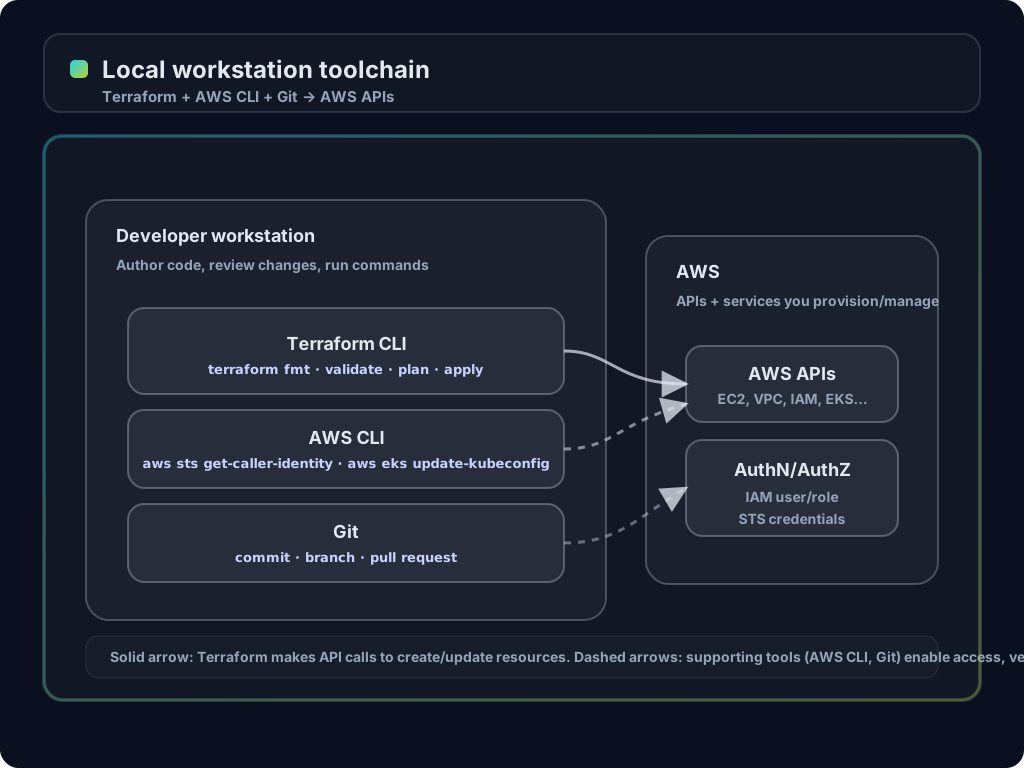
Before starting, ensure all participants have the following versions installed:
- Terraform CLI: 1.14+
- AWS CLI: 2.x
- Git: 2.40+ (any recent version is fine)
- Terraform AWS Provider: ~> 6.0
🛠️ Final Consolidated Source Code (main.tf)
Terraform
terraform {
  required_providers {
    aws = {
      source  = "hashicorp/aws"
      version = "~> 6.0"
    }
  }
}

provider "aws" {
  region = "us-east-1"
}

locals { env = terraform.workspace }

# Network Layer
resource "aws_vpc" "main" {
  cidr_block = "10.0.0.0/16"
  tags = { Name = "vpc-${local.env}" }
}

resource "aws_subnet" "pub_a" {
  vpc_id = aws_vpc.main.id
  cidr_block = "10.0.1.0/24"
  availability_zone = "us-east-1a"
}

# ALB & Security Group
resource "aws_security_group" "lb_sg" {
  vpc_id = aws_vpc.main.id
  ingress {
    from_port = 80; to_port = 80; protocol = "tcp"; cidr_blocks = \["0.0.0.0/0"]
  }
  egress {
    from_port = 0; to_port = 0; protocol = "-1"; cidr_blocks = \["0.0.0.0/0"]
  }
}

resource "aws_lb" "app_lb" {
  name = "alb-${local.env}"
  load_balancer_type = "application"
  security_groups = [aws_security_group.lb_sg.id]
  subnets = [aws_subnet.pub_a.id]
}

# EC2 Compute
data "aws_ami" "amazon_linux" {
  most_recent = true
  owners = ["amazon"]
  filter { name = "name"; values = ["al2023-ami-*-x86_64"] }
}

resource "aws_instance" "web" {
  ami = data.aws_ami.amazon_linux.id
  instance_type = "t2.micro"
  subnet_id = aws_subnet.pub_a.id
  tags = { Name = "server-${local.env}" }
}